Displacement Map Generator
Turn any photo or texture into a displacement map that moves real geometry. AI reads the depth of the surface instead of its brightness, and the 3D sphere shows its outline change as the map pushes it out. Download a 16-bit PNG for Blender, Unreal Engine, 3ds Max and V-Ray.
Sample: Skin
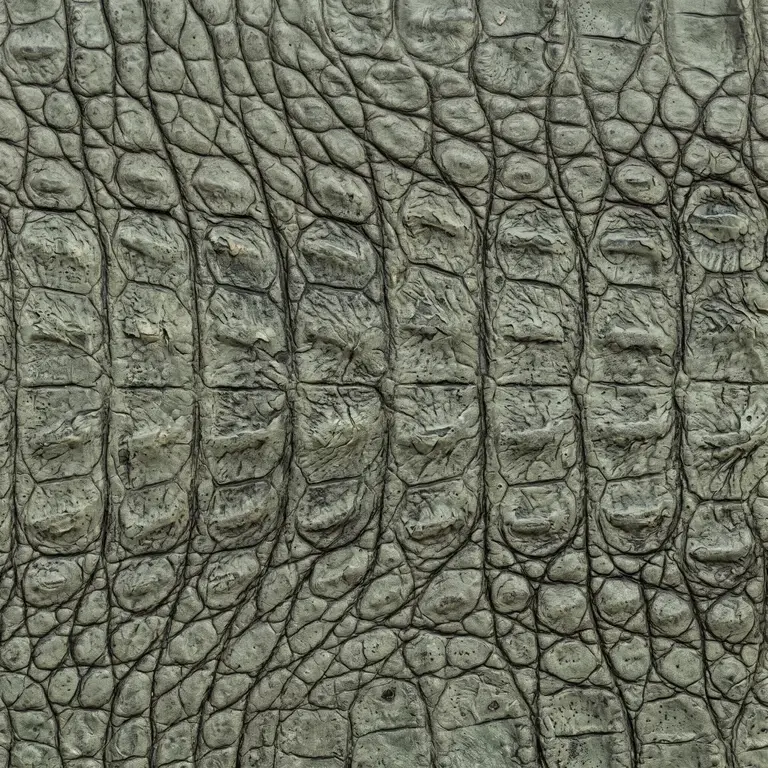
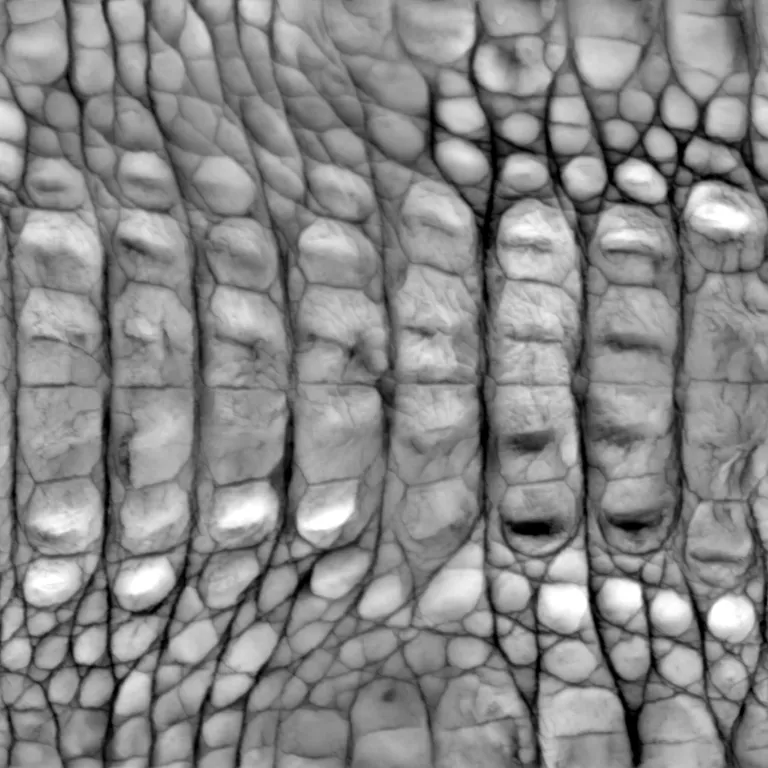
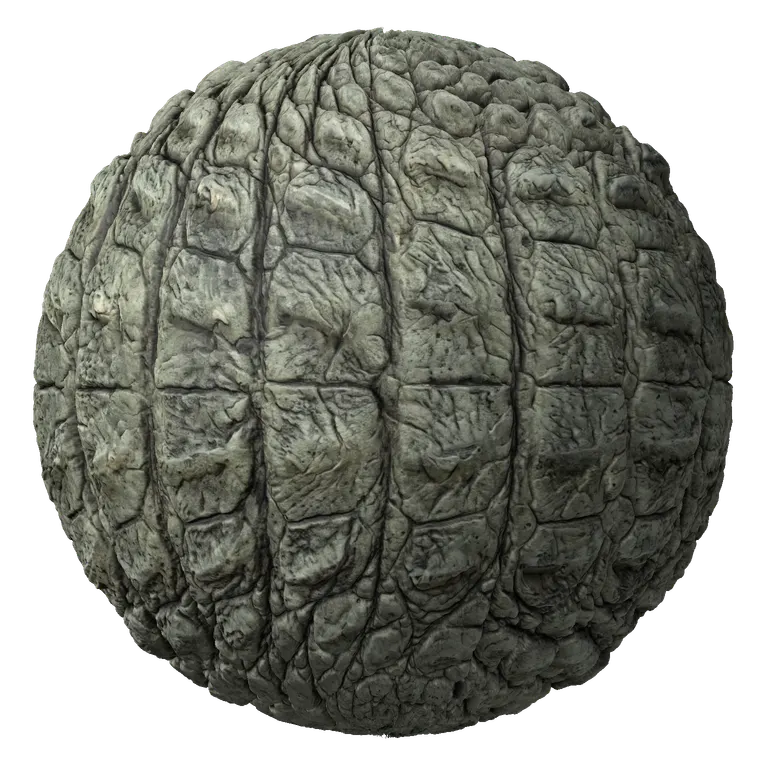
Detail, roughness, AO and single-map downloads
Bump detail
Roughness and AO
Download one map
AI photo mode: shape read from the photo, shadows stay shadowsRuns in your browser. Images never leave your device.
Displacement Map vs Normal Map on the Same Ball
Left, a cobblestone ball with only its normal map: the light picks out every stone, but the outline stays a perfect circle. Right, the same ball with the displacement map from this generator: the stones push out of the surface and the edge turns bumpy. That outline is what a displacement map adds.
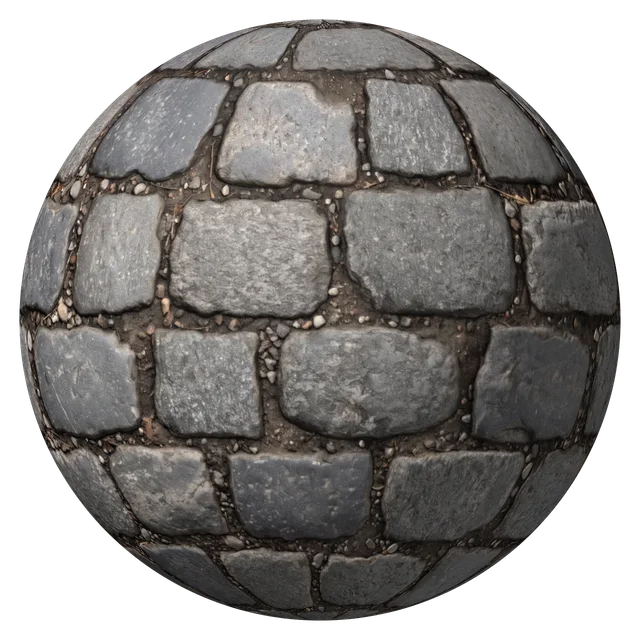 Normal map only
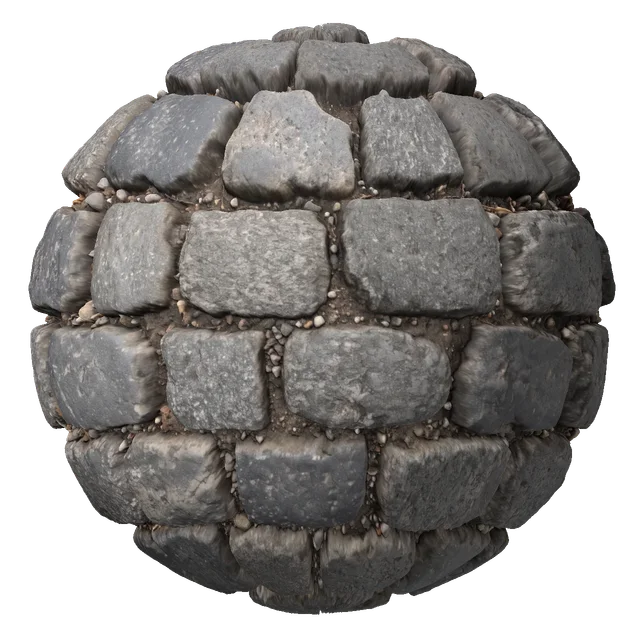 With displacement
Displacement vs Normal vs Bump Map
All three add surface detail, and the displacement map generator gives you the matching normal map in the same ZIP. Only displacement moves the mesh, which is why it costs more and looks the most real up close.
Stores
- Displacement map
- Height, grayscale
- Normal map
- Surface direction, RGB
- Bump map
- Height, grayscale
Changes the outline
- Displacement map
- Yes
- Normal map
- No
- Bump map
- No
Needs a dense mesh
- Displacement map
- Yes, subdivision or tessellation
- Normal map
- No
- Bump map
- No
Render cost
- Displacement map
- High
- Normal map
- Low
- Bump map
- Low
Best for
- Displacement map
- Close-ups, stone walls, terrain, film
- Normal map
- Games and real-time scenes
- Bump map
- Fine detail in offline renders
| Displacement map | Normal map | Bump map | |
|---|---|---|---|
| Stores | Height, grayscale | Surface direction, RGB | Height, grayscale |
| Changes the outline | Yes | No | No |
| Needs a dense mesh | Yes, subdivision or tessellation | No | No |
| Render cost | High | Low | Low |
| Best for | Close-ups, stone walls, terrain, film | Games and real-time scenes | Fine detail in offline renders |
How to Use a Displacement Map in Blender
Four settings turn the 16-bit PNG from the displacement map generator into real geometry in Cycles. Skip one and the surface stays flat.
- 1
Give the mesh enough polygons
Add a Subdivision Surface modifier, or Adaptive Subdivision in Cycles. Displacement can only move vertices that exist.
- 2
Load the map as Non-Color
Add an Image Texture node with the displacement PNG and set Color Space to Non-Color, so the 16-bit values are read as they are.
- 3
Connect a Displacement node
Image Texture Color into the Height input of a Displacement node, and that into the Displacement socket of the Material Output. Keep Midlevel at 0.5 and start Scale low.
- 4
Turn on true displacement
In the material settings, set Displacement to Displacement and Bump. For EEVEE or a quick preview, a Displace modifier with the same texture moves the mesh too.
Fixing Common Displacement Map Problems
Stair steps on smooth slopes
An 8-bit map or an sRGB texture setting. Use the 16-bit PNG from the displacement map generator and set it to Non-Color.
Spikes and torn edges
Scale too high for the mesh density. Lower the Scale, add subdivision, or reduce Fine detail before you download.
The whole object swells or shrinks
Midlevel is off. At 0.5, mid gray stays in place, white pushes out and black pulls in.
Seams where the texture repeats
The texture does not tile. Turn on Seamless before you download, and every map tiles together.
How to Make a Displacement Map from an Image
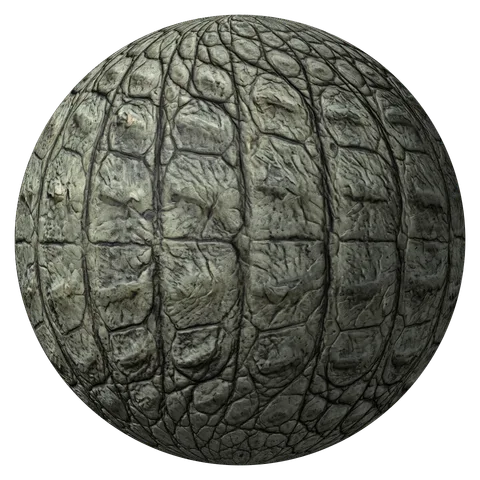
From a photo to a 16-bit displacement map in four steps. The crocodile skin sample is already open in the displacement map generator, with its displacement live on the sphere.
- 1
Open a straight-on photo
Upload, drop or paste a photo or texture, or take a photo with your phone. Shoot straight on in soft light.
- 2
Let AI read the depth
AI photo mode reads how deep each part of a real photo is. Image mode suits scans where bright already means high.
- 3
Shape the depth
Strength sets the depth range, and Large, Medium and Fine decide which bumps dominate. Watch the outline of the sphere change.
- 4
Save the displacement map
Save the displacement map, or the ZIP with normal, roughness and AO maps that match it.
Displacement Map Generator FAQ
Open the image in the displacement map generator above and download the 16-bit displacement map. AI photo mode reads the depth from a photo; image mode turns brightness into height for clean textures.
They hold the same data: a grayscale height per pixel. The name tells you how it is used. Applied to move vertices, it is a displacement map. The height map download and the displacement map download are the same 16-bit file.
Yes. AI photo mode runs a neural network trained on material scans in your browser. It tells real depth from shadows and color, so dark stains do not sink and pale spots do not rise.
A displacement map moves the vertices of the mesh, so the silhouette changes and the depth holds up from any angle. A normal map only changes how light hits a flat surface, which is cheap and works in real time but keeps the outline flat. Many materials use both: displacement for the big shapes, the normal map for fine detail.
Displacement stretches the gray levels over real distance. With the 256 levels of an 8-bit file, every level becomes a visible step. The 65,536 levels of a 16-bit file stay smooth.
Yes. The map works in any renderer that reads a grayscale displacement texture: Nanite tessellation in Unreal Engine, the Displace modifier and V-Ray or Corona displacement in 3ds Max, Cinema 4D and Houdini.
Yes. The displacement map generator is free for personal and client work, with no sign-up, no watermark and no limit. The AI model runs in your browser, so your images are never uploaded.
Make Your Displacement Map Now
Drop in a photo and get a 16-bit displacement map with matching normal, roughness and AO maps. Free, in your browser.
Upload an image