Bump Map Generator
Turn any photo or texture into a grayscale bump map: white raised, black sunken, ready for Blender, SketchUp, V-Ray and D5. AI reads the real relief, so shadows and stains stay out of the bumps. Download the bump map as a PNG, or the normal map made from the same surface.
Sample: Fabric
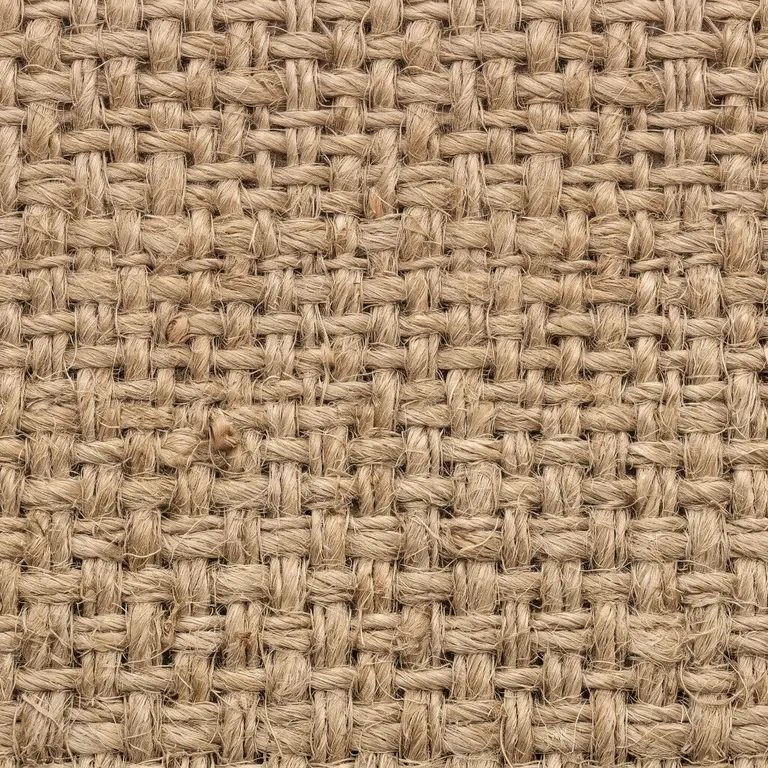
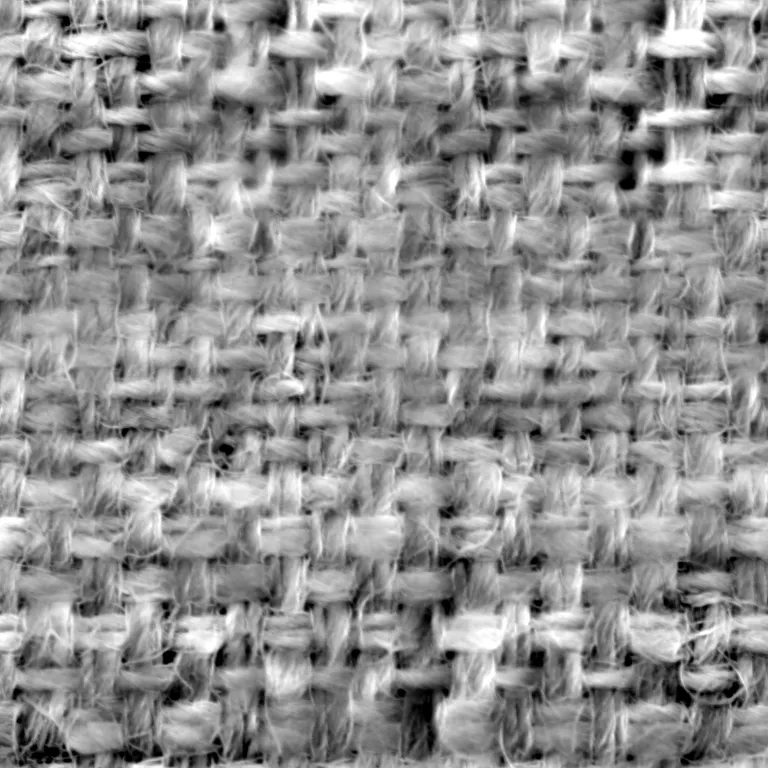
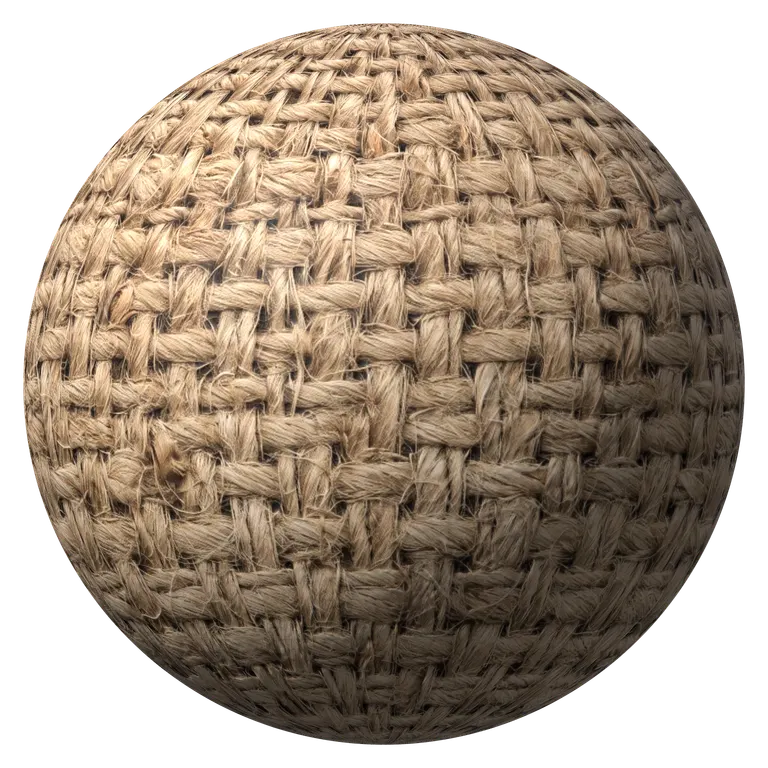
Detail, roughness, AO and base color
Bump detail
Roughness and AO
Base color
AI photo mode: shape read from the photo, shadows stay shadowsRuns in your browser. Images never leave your device.
All maps from this image
Click a map to view it, or download it on its own
- Base color
- Normal
- Bump
- Roughness
- AO
- Curvature
Bump Map vs Normal Map
Both come from the same burlap in the bump map generator. The bump map stores only height, one gray value per pixel, and the renderer works out the slopes while it draws. The normal map stores the slope directions themselves, so it lights more precisely and every game engine reads it. Use the bump map for quick detail in offline renders, the normal map for games.
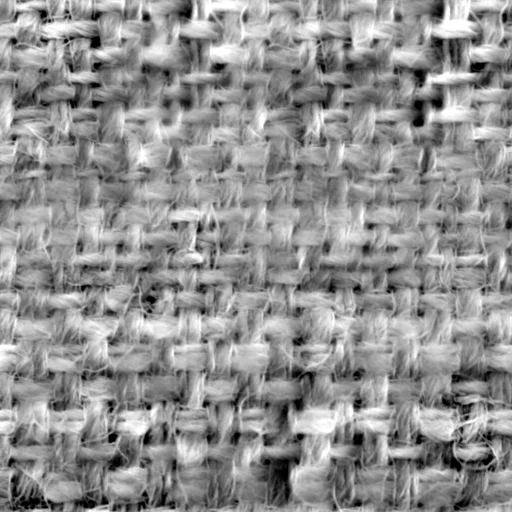 Bump map
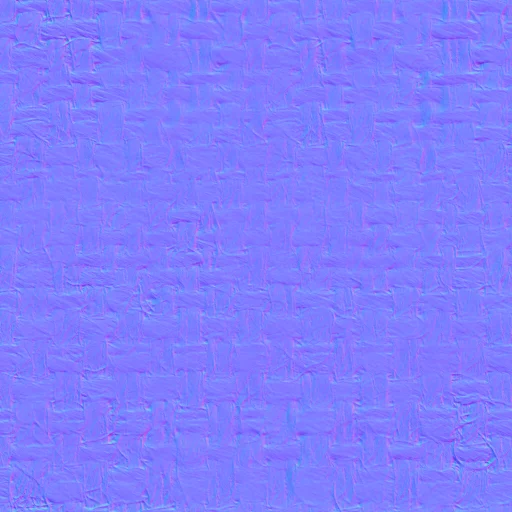 Normal map
What Is a Bump Map?
Fake depth from a grayscale image
A bump map is a grayscale texture that tells the renderer how high each point of a surface is, so it can shade fine detail such as weave, pores, scratches and grain without extra polygons. White is raised, black is sunken and mid gray is the surface itself. The mesh never moves and the outline stays flat, which is why bump maps carry the small detail and displacement maps the big shapes. A bump map generator makes one from a photo instead of painting it by hand.
- White raised, black sunken, gray flat
- Changes the shading, never the outline
- Made for fine detail: weave, pores, scratches, grain
Where the Bump Map Goes in Each App
Offline renderers take the bump map as it is. Game engines want a normal map, which the bump map generator gives you from the same surface.
Blender
- Slot
- Bump node, into the Normal input of the Principled BSDF
- Tip
- Image Texture set to Non-Color, start with Strength 0.3
V-Ray (3ds Max, SketchUp, Rhino)
- Slot
- Bump map slot of the V-Ray material
- Tip
- The same slot also takes a normal map
Corona
- Slot
- Bump slot of the Physical material
- Tip
- Lower the amount for fine fabric and paper
D5 Render
- Slot
- Bump channel of the material
- Tip
- Raise the strength until the weave catches the light
Unity
- Slot
- Normal Map slot
- Tip
- Import the bump map as Normal map with Create from Grayscale, or use the normal map download
Unreal Engine
- Slot
- Normal pin of the material
- Tip
- Use the normal map download in DirectX format
| App | Slot | Tip |
|---|---|---|
| Blender | Bump node, into the Normal input of the Principled BSDF | Image Texture set to Non-Color, start with Strength 0.3 |
| V-Ray (3ds Max, SketchUp, Rhino) | Bump map slot of the V-Ray material | The same slot also takes a normal map |
| Corona | Bump slot of the Physical material | Lower the amount for fine fabric and paper |
| D5 Render | Bump channel of the material | Raise the strength until the weave catches the light |
| Unity | Normal Map slot | Import the bump map as Normal map with Create from Grayscale, or use the normal map download |
| Unreal Engine | Normal pin of the material | Use the normal map download in DirectX format |
How to Make a Bump Map from an Image
Four steps from a photo to a bump map. The burlap sample is already open in the bump map generator.
- 1
Open a close-up of the surface
Upload, drop or paste a photo or texture, or take one with your phone. Bump maps carry fine detail, so get close and shoot straight on.
- 2
Keep the fine detail
Raise Fine and Medium under Detail and lower Large: bump maps are for weave and grain, the big shapes belong in displacement.
- 3
Check it in 3D
Move the mouse over the bump map generator to sweep the light across the ball and see every thread catch it.
- 4
Download the bump map
Save the grayscale PNG, the matching normal map for game engines, or the ZIP with roughness and AO too.
Bump Map Generator FAQ
The data is the same: grayscale height per pixel. The name says how it is used. A bump map only changes the shading of fine detail; a height map also drives displacement and parallax. The bump map download is 8-bit, the height map download 16-bit.
For games and real-time engines, the normal map: it stores exact directions and every engine reads it. For offline renderers such as V-Ray, Corona or Cycles, either works, and a bump map is quicker to edit by hand. The bump map generator gives you both from one image.
Add an Image Texture with the bump map, set it to Non-Color, connect it to the Height input of a Bump node and the Bump node to the Normal input of the Principled BSDF. Start with Strength around 0.3 and raise it until the detail reads.
Renderers read white as raised. In the image mode of the bump map generator, bright areas become high, so a texture with pale gaps (like light mortar) comes out inside out: turn on Invert height, or use AI photo mode, which reads the real shape.
Yes. Open the bump map in the bump map generator in image mode: it is read as height and the normal map download is built from its slopes, in OpenGL or DirectX.
Yes. The bump map generator has no sign-up, no watermark and no limit, and runs in your browser, so your images never leave your device.
Make Your Bump Map Now
Drop in a photo and get a bump map with the matching normal, roughness and AO maps. Free, in your browser.
Upload an image