OpenGL to DirectX Normal Map Converter
Convert normal maps from OpenGL to DirectX or back. Drop one map or a whole texture set: each map’s format is detected, the green channel is flipped at full resolution and nothing else changes. Check the result by eye in the lit previews before you download.
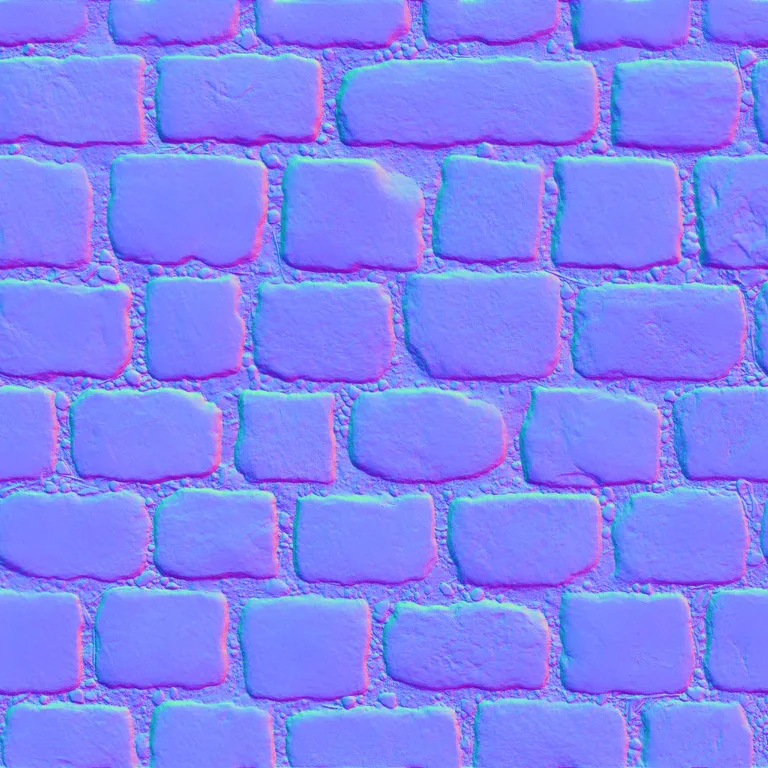
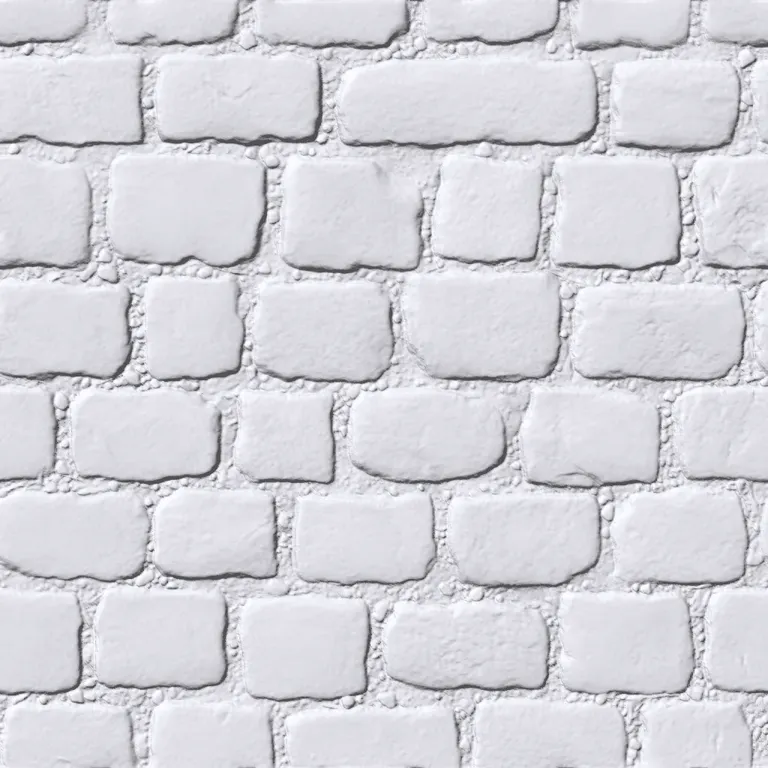
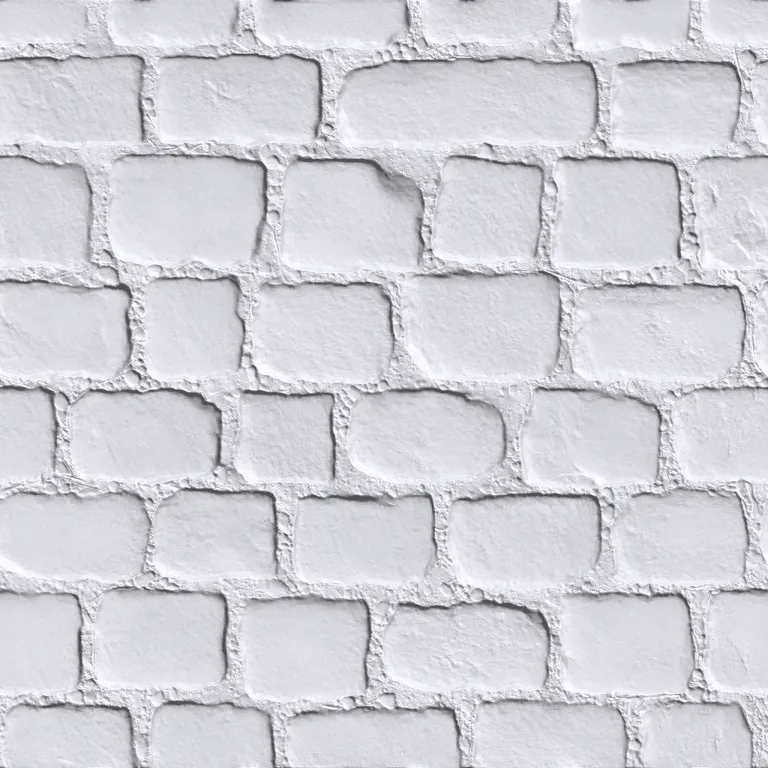
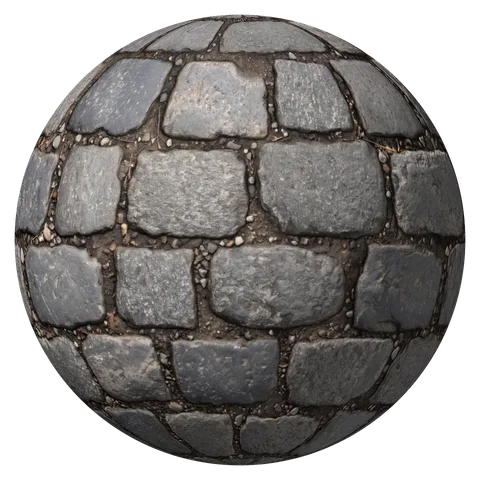
The map lit from the top left, read both ways. With the right format the stones look raised; with the wrong one they look lit from below.
Full resolution, only the green channel changes. PNGs keep their alpha, bit depth and color profile exactly. Runs in your browser; your maps are never uploaded.
How to Tell OpenGL from DirectX Normal Maps
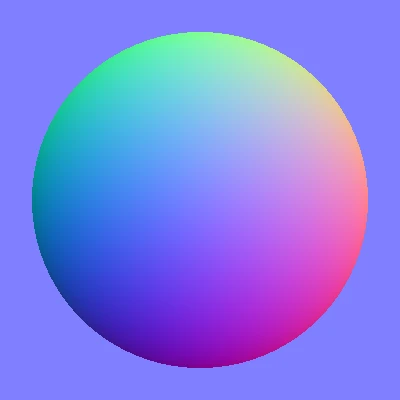
Look at the colors: in an OpenGL normal map, the top edge of every bump is light green and the bottom edge purple; in DirectX it is the other way round. Or light it: lit from above, the right format looks raised and the wrong one dented. The OpenGL to DirectX normal map converter does both and also checks how the slopes fit together.
The test sphere
A dome saved as an OpenGL normal map: green on top.
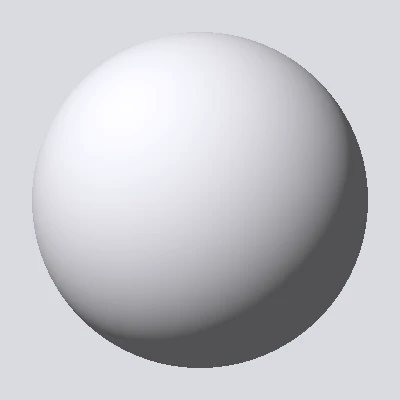
Read as OpenGL
Lit from the top left, it bulges out. Right format.
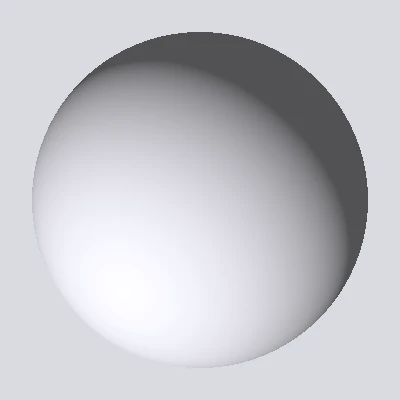
Read as DirectX
The light seems to come from below. Wrong format.
Which Normal Map Format Each Engine Uses
The two formats differ only in the green channel: OpenGL points it up (Y+), DirectX down (Y-). That channel is all the OpenGL to DirectX normal map converter changes.
Blender
- Format
- OpenGL
- Green
- Y+
Unity
- Format
- OpenGL
- Green
- Y+
Godot
- Format
- OpenGL
- Green
- Y+
Maya
- Format
- OpenGL
- Green
- Y+
three.js and glTF
- Format
- OpenGL
- Green
- Y+
Unreal Engine
- Format
- DirectX
- Green
- Y-
3ds Max
- Format
- DirectX
- Green
- Y-
CryEngine
- Format
- DirectX
- Green
- Y-
Substance 3D Painter
- Format
- Set per project, DirectX by default
- Green
- Either
| Engine or app | Format | Green |
|---|---|---|
| Blender | OpenGL | Y+ |
| Unity | OpenGL | Y+ |
| Godot | OpenGL | Y+ |
| Maya | OpenGL | Y+ |
| three.js and glTF | OpenGL | Y+ |
| Unreal Engine | DirectX | Y- |
| 3ds Max | DirectX | Y- |
| CryEngine | DirectX | Y- |
| Substance 3D Painter | Set per project, DirectX by default | Either |
Convert DirectX to OpenGL Inside Blender
No file to convert? Blender can do what the OpenGL to DirectX normal map converter does inside the material itself, with four nodes.
- 1
Split the channels
Image Texture (Non-Color) into a Separate Color node set to RGB.
- 2
Invert green
Add a Math node set to Subtract: 1 in the first value, the Green output in the second.
- 3
Join them again
Red, the inverted green and blue into a Combine Color node.
- 4
Into the Normal Map node
Combine Color into a Normal Map node, and that into the Normal input of the Principled BSDF.
How to Use the OpenGL to DirectX Normal Map Converter
Four steps for one map or a hundred. The cobblestone sample is already in the converter.
- 1
Drop your normal maps
One or many PNG, JPG or WebP files at once, any size your device can open.
- 2
Check what was detected
Each map shows the format it reads as and how sure the converter is. The lit previews let you confirm it by eye, and Map is sets it by hand.
- 3
Pick the direction
Swap each map to the other format, or send them all to DirectX for Unreal or all to OpenGL for Unity and Blender. Maps already in that format are saved as they are.
- 4
Download
Save one PNG or the whole set as a ZIP, named with the new format.
OpenGL to DirectX Converter FAQ
No. The OpenGL to DirectX normal map converter changes only the green channel, each value turned upside down (255 minus the value, 65,535 in a 16-bit file); red, blue, alpha, bit depth and resolution stay exactly as they were. The result is saved as PNG, so a JPG input loses nothing further.
Yes, the OpenGL to DirectX normal map converter works at full resolution. Very large maps need enough memory on your device: computers handle 8K, many phones stop around 4K.
It was probably in the target format already: check the detected format and the previews. If the left and right are wrong too, the mesh UVs are mirrored or the texture is read as sRGB instead of Non-Color, which a format change cannot fix.
Yes. A 16-bit PNG comes back as a 16-bit PNG with every sample exact, and its alpha channel and color profile stay as they were. JPG and WebP files hold 8 bits to begin with and are saved as 8-bit PNG.
A real surface has slopes that fit together. Read with the wrong green direction, they stop fitting, so the OpenGL to DirectX normal map converter measures both readings and picks the one that fits. On maps too flat to judge it says it cannot tell.
Yes. The OpenGL to DirectX normal map converter has no sign-up, no watermark and no limit on files. Everything runs in your browser; your maps are never uploaded.
Convert OpenGL to DirectX Normal Maps Now
Drop in one normal map or a whole set and download them in the other format, full size. Free, in your browser.
Upload normal maps